
- GitLab - Introduction
- GitLab - Installation
- GitLab - Git Commands
- GitLab - SSH Key Setup
- GitLab - Create Project
- GitLab - Fork a Project
- GitLab - Create a Branch
- GitLab - Add a File
- GitLab - Rebase Operation
- GitLab - Squashing Commits
- GitLab Users and Groups
- GitLab - Adding Users
- GitLab - Create Groups
- GitLab - Remove Users
- GitLab - User Permissions
- GitLab Issue Tracker
- GitLab - Create Issue
- GitLab - Merge Requests
- GitLab - Referencing Issues
- GitLab - Milestones
- GitLab - Wiki Pages
- GitLab Instance Management
- GitLab - Create Backup
- GitLab - Restore Backup
- GitLab - Import Repository
- GitLab Continuous Integration
- GitLab CI - Introduction
- GitLab - CI/CD
- GitLab - CI/CD Variables
- GitLab CI - Permissions
- Configuring GitLab Runners
- GitLab CI - Advanced usage of CI
- GitLab CI - Cycle Analytics
- GitLab CI - Container Registry
Selected Reading
GitLab - Create a Branch
Description
Branch is independent line and part of the development process. The creation of branch involves following steps.
Creating a Branch
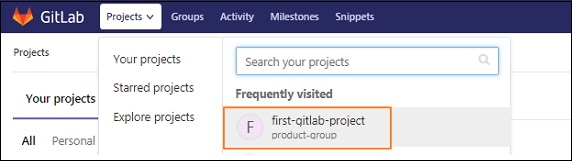
Step 1 − Login to your GitLab account and go to your project under Projects section.
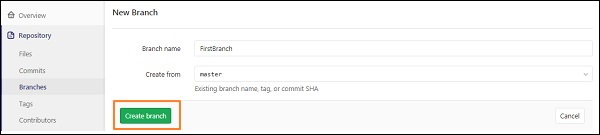
Step 2 − To create a branch, click on the Branches option under the Repository section and click on the New branch button.

Step 3 − In the New branch screen, enter the name for branch and click on the Create branch button.
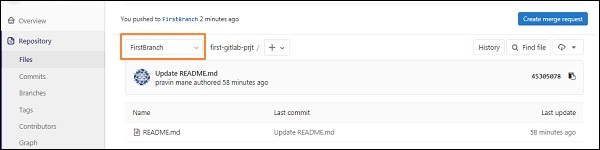
Step 4 − After creating branch, you will get a below screen along with the created branch.

Advertisements
8