
- Basic Image Operations
- Python Pillow - Working with Images
- Python Pillow - Resizing an Image
- Python Pillow - Flip and Rotate Images
- Python Pillow - Cropping an Image
- Python Pillow - Adding Borders to Images
- Python Pillow - Identifying Image Files
- Python Pillow - Merging Images
- Python Pillow - Cutting and Pasting Images
- Python Pillow - Rolling an Image
- Python Pillow - Writing text on image
- Python Pillow - ImageDraw Module
- Python Pillow - Concatenating two Images
- Python Pillow - Creating Thumbnails
- Python Pillow - Creating a Watermark
- Python Pillow - Image Sequences
- Python Pillow Color Conversions
- Python Pillow - Colors on an Image
- Python Pillow - Creating Images With Colors
- Python Pillow - Converting Color String to RGB Color Values
- Python Pillow - Converting Color String to Grayscale Values
- Python Pillow - Change the Color by Changing the Pixel Values
- Image Manipulation
- Python Pillow - Reducing Noise
- Python Pillow - Changing Image Modes
- Python Pillow - Compositing Images
- Python Pillow - Working with Alpha Channels
- Python Pillow - Applying Perspective Transforms
- Image Filtering
- Python Pillow - Adding Filters to an Image
- Python Pillow - Convolution Filters
- Python Pillow - Blur an Image
- Python Pillow - Edge Detection
- Python Pillow - Embossing Images
- Python Pillow - Enhancing Edges
- Python Pillow - Unsharp Mask Filter
- Image Enhancement and Correction
- Python Pillow - Enhancing Contrast
- Python Pillow - Enhancing Sharpness
- Python Pillow - Enhancing Color
- Python Pillow - Correcting Color Balance
- Python Pillow - Removing Noise
- Advanced Topics
- Python Pillow - Creating Animated GIFs
- Python Pillow - Batch Processing Images
- Python Pillow - Converting Image File Formats
- Python Pillow - Adding Padding to an Image
- Python Pillow - Color Inversion
- Python Pillow - M L with Numpy
- Python Pillow with Tkinter BitmapImage and PhotoImage objects
- Image Module
- Python Pillow - Image Blending
- Python Pillow Useful Resources
- Python Pillow - Quick Guide
- Python Pillow - Function Reference
- Python Pillow - Useful Resources
- Python Pillow - Discussion
Python Pillow - Cut and Paste Image
Cutting Images
Pillow (Python Imaging Library) allows us to extract a rectangular region from an image. The extracted region of the image is also known as a bounding box from an image. In The crop() method of the Image module creates a new image that represents the specified region of the original image. This method allows us to specify the coordinates of the bounding box for the region we want to crop.
Here is the syntax and usage of the 'crop()' method in Pillow −
Image.crop(box)
Where,
box − This is a tuple specifying the rectangular region we want to extract. The box parameter should be a tuple of four values: (left, upper, right, lower).
left is the x-coordinate of the left edge of the bounding box.
upper is the y-coordinate of the upper edge of the bounding box.
right is the x-coordinate of the right edge of the bounding box.
lower is the y-coordinate of the lower edge of the bounding box.
Example - Cutting a Rectangular Portion from an Image
In this example we are cropping a rectangular portion as per our requirement using the crop() method of the Image module.
main.py
from PIL import Image

#Open the image
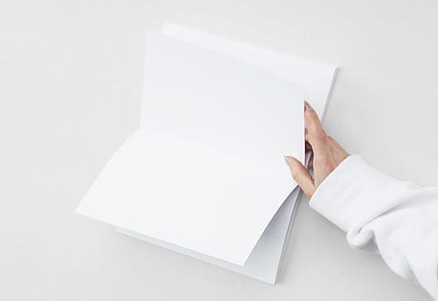
image = Image.open("Images/book.jpg")

#Define the bounding box for cropping
box = (100, 100, 200, 200)
#(left, upper, right, lower)

#Crop the image using the defined bounding box
cropped_image = image.crop(box)

#Save or display the cropped image
cropped_image.save("Output_Images/cropped_image.jpg")
cropped_image.show()
Image to be cropped
Output

Example - Cutting another Image
Here this is another example for cropping a rectangular part of the image by using the crop() method.
main.py
from PIL import Image

#Open the image
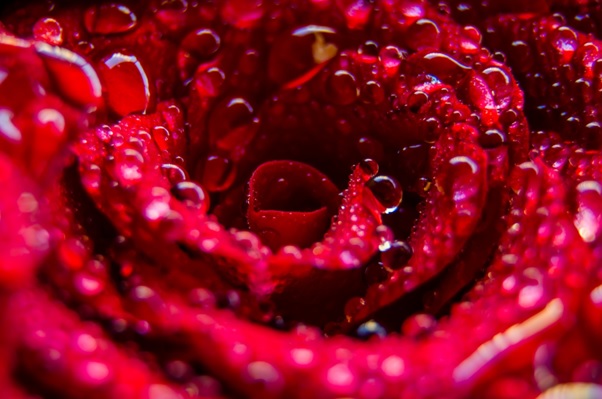
image = Image.open("Images/rose.jpg")

#Define the bounding box for cropping
box = (10, 10, 200, 200)
#(left, upper, right, lower)

#Crop the image using the defined bounding box
cropped_image = image.crop(box)

#Save or display the cropped image
cropped_image.save("Output_Images/cropped_image.jpg")
cropped_image.show()
Input Image
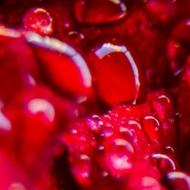
Output
Pasting Images
Pasting images using Python Pillow allows us to extract a region of interest from one image and paste it onto another. This process is useful for tasks like image cropping, object extraction and compositing.
The paste() method in Pillow (Python Imaging Library) allows us to paste one image onto another at a specified position. It's a commonly used method for compositing images, adding watermarks or overlaying one image on top of another.
The below is the syntax and parameters of the paste() function −
PIL.Image.paste(im, box, mask=None)
im − This is the source image i.e., the image we want to paste onto the current image.
box − This parameter specifies the position where we want to paste the source image. It can be a tuple of coordinates '(left, upper, right, lower)'. The source image will be pasted inside the bounding box defined by these coordinates.
mask (optional) − If this parameter provided then it can be an image that defines a transparency mask. The pasted image will be masked according to the transparency values in the mask image.
Example - Pasting an Image
Here is an example of how to use the paste() method to paste one image onto another.
main.py
from PIL import Image

#Open the background image
background = Image.open("Images/black_white.jpg")

#Open the image to be pasted
image_to_paste = Image.open("Images/tutorialspoint.jpg")

#Define the position where the image should be pasted
position = (100, 100)

#Paste the image onto the background
background.paste(image_to_paste, position)

#Save the modified image
background.save("Output_Images/paste1.jpg")
background.show()
Images to be used

Output