- Basic Image Operations
- Python Pillow - Working with Images
- Python Pillow - Resizing an Image
- Python Pillow - Flip and Rotate Images
- Python Pillow - Cropping an Image
- Python Pillow - Adding Borders to Images
- Python Pillow - Identifying Image Files
- Python Pillow - Merging Images
- Python Pillow - Cutting and Pasting Images
- Python Pillow - Rolling an Image
- Python Pillow - Writing text on image
- Python Pillow - ImageDraw Module
- Python Pillow - Concatenating two Images
- Python Pillow - Creating Thumbnails
- Python Pillow - Creating a Watermark
- Python Pillow - Image Sequences
- Python Pillow Color Conversions
- Python Pillow - Colors on an Image
- Python Pillow - Creating Images With Colors
- Python Pillow - Converting Color String to RGB Color Values
- Python Pillow - Converting Color String to Grayscale Values
- Python Pillow - Change the Color by Changing the Pixel Values
- Image Manipulation
- Python Pillow - Reducing Noise
- Python Pillow - Changing Image Modes
- Python Pillow - Compositing Images
- Python Pillow - Working with Alpha Channels
- Python Pillow - Applying Perspective Transforms
- Image Filtering
- Python Pillow - Adding Filters to an Image
- Python Pillow - Convolution Filters
- Python Pillow - Blur an Image
- Python Pillow - Edge Detection
- Python Pillow - Embossing Images
- Python Pillow - Enhancing Edges
- Python Pillow - Unsharp Mask Filter
- Image Enhancement and Correction
- Python Pillow - Enhancing Contrast
- Python Pillow - Enhancing Sharpness
- Python Pillow - Enhancing Color
- Python Pillow - Correcting Color Balance
- Python Pillow - Removing Noise
- Advanced Topics
- Python Pillow - Creating Animated GIFs
- Python Pillow - Batch Processing Images
- Python Pillow - Converting Image File Formats
- Python Pillow - Adding Padding to an Image
- Python Pillow - Color Inversion
- Python Pillow - M L with Numpy
- Python Pillow with Tkinter BitmapImage and PhotoImage objects
- Image Module
- Python Pillow - Image Blending
- Python Pillow Useful Resources
- Python Pillow - Quick Guide
- Python Pillow - Function Reference
- Python Pillow - Useful Resources
- Python Pillow - Discussion
Python Pillow - Unsharp Mask Filter
Unsharp masking is a widely used image sharpening technique in image processing. The fundamental concept behind unsharp masking involves using a softened or unsharp version of a negative image to create a mask for the original image. This unsharp mask is subsequently merged with the original positive image, resulting in a less blurry version of the original image, making it clearer.
The Python pillow(PIL) library provides a class called UnsharpMask() within its ImageFilter module for the application of the Unsharp Masking filter to images.
The UnsharpMask Filter
The ImageFilter.UnsharpMask() class represents an unsharp mask filter, which is used to enhance image sharpness.
Following is the syntax of the ImageFilter.UnsharpMask() class −
class PIL.ImageFilter.UnsharpMask(radius=2, percent=150, threshold=3)
Where,
radius − This parameter controls the blur radius. Radius affects the size of the edges to be enhanced. A smaller radius sharpens smaller details, while a larger radius can create light halos around objects. Adjusting the radius and amount affects each other; decreasing one allows the other to have a greater impact.
percent − It determines the strength of the unsharp mask in percentage. Percentage controls the strength or magnitude of the sharpening effect. It determines how much contrast is added at the edges of objects. A higher amount results in a more pronounced sharpening effect, making edge borders darker and lighter. It does not impact the width of the edge rims.
threshold − Threshold controls the minimum change in brightness that gets sharpened. It decides how different adjacent tonal values need to be for the filter to take action. A higher threshold prevents smooth areas from becoming speckled. Lower values sharpen more, while higher values spare lower-contrast areas.
Example - Using Unsharp Mask
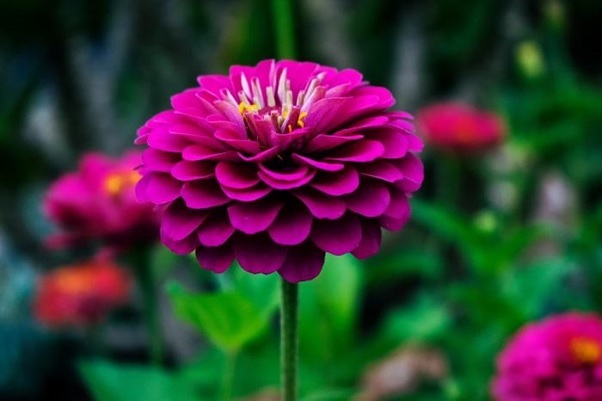
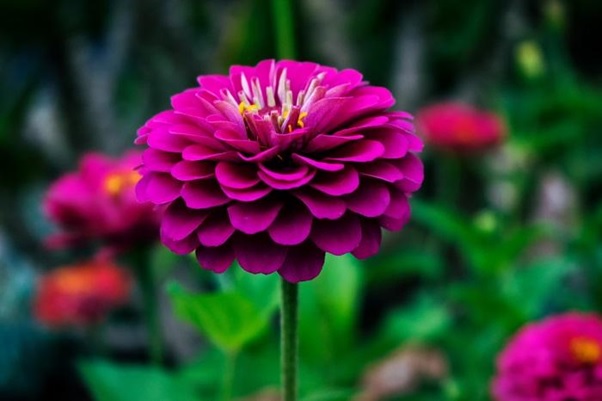
The following example applies the unsharp mask filter to an image using the ImageFilter.UnsharpMask() class and the Image.filter() method with default values.
main.py
from PIL import Image, ImageFilter

# Open the image
original_image = Image.open('Images/flower1.jpg')

# Apply the Unsharp Mask filter with default parameter values
sharpened_image = original_image.filter(ImageFilter.UnsharpMask())

# Display the original image
original_image.show()

# Display the sharpened image
sharpened_image.show()
Output
Input image −
Output image after applying the unsharp mask filter with default parameter values −
Example - Using Custom Unsharp Mask
Here's another example that applies the Unsharp Mask filter to an image using different parameter values.
main.py
from PIL import Image, ImageFilter

# Open the image using Pillow
original_image = Image.open('Images/flower1.jpg')

# Apply the Unsharp Mask filter with custom parameters
sharpened_image = original_image.filter(ImageFilter.UnsharpMask(radius=4, percent=200, threshold=3))

# Display the original image
original_image.show()

# Display the sharpened image
sharpened_image.show()
Output
Input image −
Output image after applying the unsharp mask filter with custom parameter values −