
- Basic Image Operations
- Python Pillow - Working with Images
- Python Pillow - Resizing an Image
- Python Pillow - Flip and Rotate Images
- Python Pillow - Cropping an Image
- Python Pillow - Adding Borders to Images
- Python Pillow - Identifying Image Files
- Python Pillow - Merging Images
- Python Pillow - Cutting and Pasting Images
- Python Pillow - Rolling an Image
- Python Pillow - Writing text on image
- Python Pillow - ImageDraw Module
- Python Pillow - Concatenating two Images
- Python Pillow - Creating Thumbnails
- Python Pillow - Creating a Watermark
- Python Pillow - Image Sequences
- Python Pillow Color Conversions
- Python Pillow - Colors on an Image
- Python Pillow - Creating Images With Colors
- Python Pillow - Converting Color String to RGB Color Values
- Python Pillow - Converting Color String to Grayscale Values
- Python Pillow - Change the Color by Changing the Pixel Values
- Image Manipulation
- Python Pillow - Reducing Noise
- Python Pillow - Changing Image Modes
- Python Pillow - Compositing Images
- Python Pillow - Working with Alpha Channels
- Python Pillow - Applying Perspective Transforms
- Image Filtering
- Python Pillow - Adding Filters to an Image
- Python Pillow - Convolution Filters
- Python Pillow - Blur an Image
- Python Pillow - Edge Detection
- Python Pillow - Embossing Images
- Python Pillow - Enhancing Edges
- Python Pillow - Unsharp Mask Filter
- Image Enhancement and Correction
- Python Pillow - Enhancing Contrast
- Python Pillow - Enhancing Sharpness
- Python Pillow - Enhancing Color
- Python Pillow - Correcting Color Balance
- Python Pillow - Removing Noise
- Advanced Topics
- Python Pillow - Creating Animated GIFs
- Python Pillow - Batch Processing Images
- Python Pillow - Converting Image File Formats
- Python Pillow - Adding Padding to an Image
- Python Pillow - Color Inversion
- Python Pillow - M L with Numpy
- Python Pillow with Tkinter BitmapImage and PhotoImage objects
- Image Module
- Python Pillow - Image Blending
- Python Pillow Useful Resources
- Python Pillow - Quick Guide
- Python Pillow - Function Reference
- Python Pillow - Useful Resources
- Python Pillow - Discussion
Python Pillow - ImageDraw Module
Drawing on images in Pillow involves using the Pillow library (Python Imaging Library) to add various visual elements such as lines, shapes, text and more to an existing image. This is a common image processing task used for tasks like image annotation, creating visualizations, adding labels or captions highlighting areas of interest and more.
We can use the ImageDraw module in Pillow to create a drawing object and then use various methods of this object to draw on the image. We can use the line(), rectangle(), ellipse(), text() and other methods to draw various elements on the image.
Drawing Text on the Image
To draw or write text on an image we can use the ImageDraw.Draw() function in the Pillow library, this method creates a drawing object that allows us to perform drawing operations on images.
Syntax
The following is the syntax and parameters of the Draw() method −
PIL.ImageDraw.Draw(image, mode=None)
Where,
image − This parameter represents the image on which we want to perform drawing operations. It's an instance of a Pillow Image object.
mode (optional) − This parameter specifies the mode in which drawing will occur. The available modes are −
- 1 − 1-bit pixels (monochrome)
- L − 8-bit pixels, black and white
- RGB − 3x8-bit pixels, true color
- RGBA − 4x8-bit pixels with transparency
- CMYK − 4x8-bit pixels in the CMYK color space
- HSV − 3x8-bit pixels in the HSV color space
Input image to be used for the below two examples.
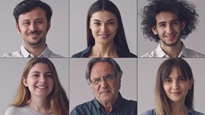
Example - Using Draw() method to add Text to Image
In this example we are using the Draw() method of the ImageDraw module to add text on the image.
main.py
from PIL import Image, ImageDraw, ImageFont

#Open an image
image = Image.open("Images/faces.jpg")

#Create a drawing object
draw = ImageDraw.Draw(image)

#Define text attributes
text = "Welcome to Tutorialspoint"
font = ImageFont.truetype("arial.ttf", size=30)
text_color = (0, 0, 255)

#Blue
text_position = (50, 50)

#Add text to the image
draw.text(text_position, text, fill=text_color, font=font)

#Save or display the image with the added drawing elements
image.save("Output_Images/drawnimage.jpg")

#Open the output drawn image
opendraw = Image.open("Output_Images/drawnimage.jpg")
opendraw.show()
Output
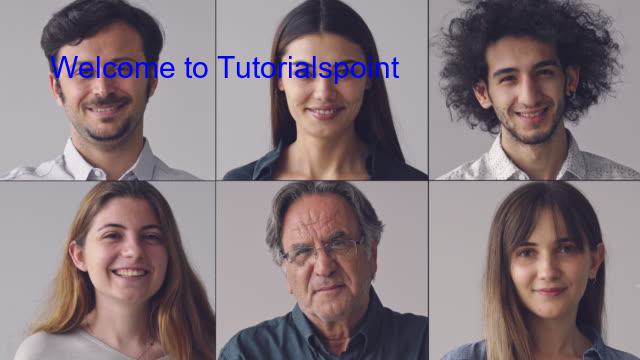
Example - Adding Blue Text to an Image
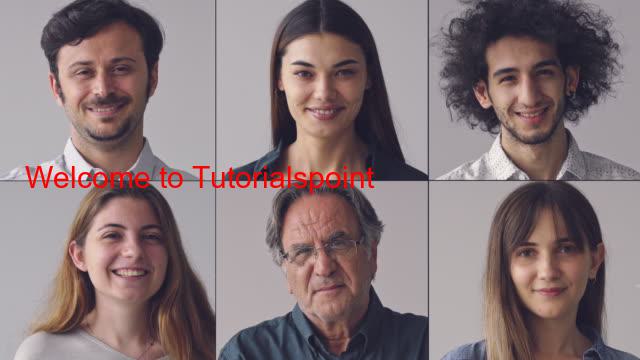
Here this is another example using the Draw() method for adding text at the middle of the image.
main.py
from PIL import Image, ImageDraw, ImageFont

#Open an image
image = Image.open("Images/faces.jpg")

#Create a drawing object
draw = ImageDraw.Draw(image)

#Define text attributes
text = "Welcome to Tutorialspoint"
font = ImageFont.truetype("arial.ttf", size=30)
text_color = (255, 0, 0)

#Add text to the image
draw.text(xy=(50, 50),
   text = text,
   font = font,
   fill= text_color)

#Save or display the image with the added drawing elements
image.save("Output_Images/drawnimage.jpg")

#Open the output drawn image
opendraw = Image.open("Output_Images/drawnimage.jpg")
opendraw.show()
Output
Drawing Rectangle on the Image
In the Pillow library (PIL) the PIL.ImageDraw.Draw.rectangle() method is used to draw a rectangle on an image using a specified outline and fill color. This method is part of the ImageDraw module and is typically called on an ImageDraw object created using PIL.ImageDraw.Draw().
Syntax
The following is the syntax and parameters of the PIL.ImageDraw.Draw.rectangle() method −
ImageDraw.Draw.rectangle(xy, outline=None, fill=None, width=0)
Where,
xy − This parameter specifies the coordinates of the rectangle as a tuple of two points. Each point is represented as (x1, y1) and (x2, y2) in which (x1, y1) is the upper-left corner and (x2, y2) is the lower-right corner of the rectangle.
outline − This parameter is optional and specifies the color of the outline of the rectangle. We can provide a color as a string e.g., "red" or "#FF0000" or as a tuple representing an RGB color (e.g., (255, 0, 0)). If set to None no outline will be drawn.
fill − This parameter is optional and specifies the color to fill the rectangle. Like the outline parameter we can specify the fill color as a string or an RGB tuple. If set to None the rectangle will not be filled.
width − This is an optional parameter to specify the width of the outline of the rectangle. By default it is 0 which means the rectangle will be filled without an outline.
Input image to be used for the below two examples.
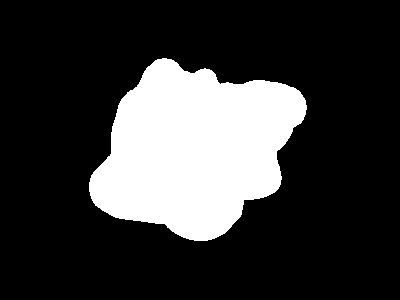
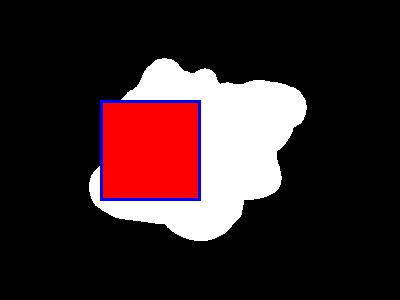
Example - Drawing a Rectangle over an Image
In this example we are drawing a rectangle on the given input image by using the PIL.ImageDraw.Draw.rectangle() method.
main.py
from PIL import Image, ImageDraw

#Open an image
image = Image.open("Images/black_white.jpg")

#Create a drawing object
draw = ImageDraw.Draw(image)

#Define the coordinates for the rectangle
xy = [(100, 100), (200, 200)]

#Draw a filled red rectangle
draw.rectangle(xy, outline="blue", fill="red", width = 3)

#Save or display the modified image
image.save("Output_Images/output.jpg")
image.show()
Output
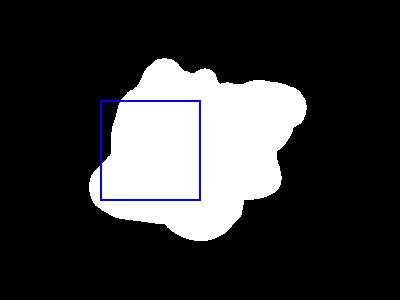
Example - Drawing an Empty Rectangle Over an Image
Here this is another example of drawing the rectangle with the specifying the outline as Blue and fill parameter as None.
from PIL import Image, ImageDraw

#Open an image
image = Image.open("Images/black_white.jpg")

#Create a drawing object
draw = ImageDraw.Draw(image)

#Define the coordinates for the rectangle
xy = [(100, 100), (200, 200)]

#Draw a filled red rectangle
draw.rectangle(xy, outline= "Blue", fill= None, width = 2)

#Save or display the modified image
image.save("Output_Images/output.jpg")
image.show()
Output
Drawing Line on the Image
PIL.ImageDraw.Draw.line() is a method provided by the Python Imaging Library (PIL) or the Pillow library. Pillow is a more modern and actively maintained fork of PIL that is used to draw a line on an image. This method is part of the ImageDraw module within PIL/Pillow which is used for drawing shapes, text, and other graphics on images.
Syntax
Here the below is the syntax of the PIL.ImageDraw.Draw.line() method −
PIL.ImageDraw.Draw.line(xy, fill=None, width=0, joint=None)
Where,
xy − A sequence of (x, y) coordinates specifying the endpoints of the line.
fill − This parameter is optional and specifies the color of the line. It can be a string specifying a color name a (R, G, B) tuple or an integer value. If not specified, the line will be black.
width − This parameter is optional and specifies the line's width in pixels. The default value is 0 which means the line will be 1 pixel wide.
joint − This parameter is optional and can be used to specify the joint style for the line. It can be one of the following values −
None (default) − The line has regular joints.
curve − The line has rounded joints.
miter − The line has pointed joints.
Input image to be used for the below two examples.
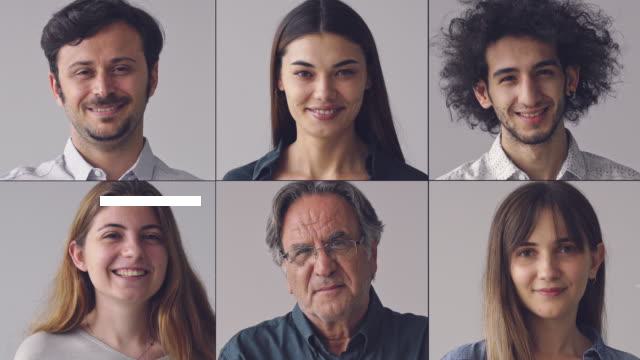
Example - Drawing a Line over an Image
In this example we are drawing a line on the input image by using PIL.ImageDraw.Draw.line() method.
main.py
from PIL import Image, ImageDraw, ImageFont

#Open an image
image = Image.open("Images/faces.jpg")

#Create a drawing object
draw = ImageDraw.Draw(image)

#Draw a line
line_coordinates = [(100, 200), (200, 200)]
draw.line(line_coordinates,width=10)

#Save or display the image with the added drawing elements
image.save("Output_Images/drawnimage.jpg")

#Open the output drawn image
opendraw = Image.open("Output_Images/drawnimage.jpg")
opendraw.show()
Output
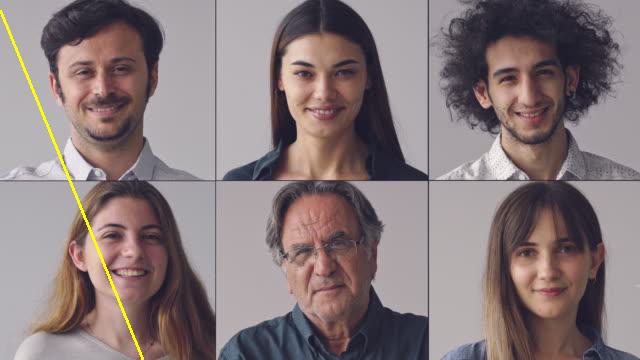
Example - Adding Curved Line to an Image
This is another example of the PIL.ImageDraw.Draw.line() method by specifying the joint parameter as curve.
main.py
from PIL import Image, ImageDraw

#Open an image
image = Image.open("Images/faces.jpg")

#Create a drawing object
draw = ImageDraw.Draw(image)

#Define the endpoints and draw a red line
line_color = "Yellow"
#Red color
start_point = (0, 10)
end_point = (200, 500)
line_width = 3
draw.line([start_point, end_point], fill=line_color, width=line_width, joint = "curve")

#Save or display the modified image
image.save("output.jpg")
image.show()
Output
Drawing Polygon on the Image
PIL.ImageDraw.Draw.polygon() is a method provided by the ImageDraw object in the Pillow library. It allows us to draw a polygon on an image. A polygon is a closed shape with multiple sides so we can specify the coordinates of the vertices to define the shape of the polygon.
This method is part of the ImageDraw.Draw object and is used to create and fill a polygon shape with a specified color.
Syntax
The following is the syntax of the PIL.ImageDraw.Draw.polygon() method −
PIL.ImageDraw.Draw.polygon(xy, fill=None, outline=None)
Where,
xy − This is a list of tuples or a flat list of coordinates specifying the vertices of the polygon. Each tuple or pair of coordinates represents a vertex of the polygon.
fill − This parameter is optional and specifies the fill color for the interior of the polygon. If we want the polygon to have no fill and we can set this to None.
outline − This parameter is optional and specifies the color of the outline or border of the polygon. If we don't want an outline then we can set this to None.
Input image to be used for the below two examples.
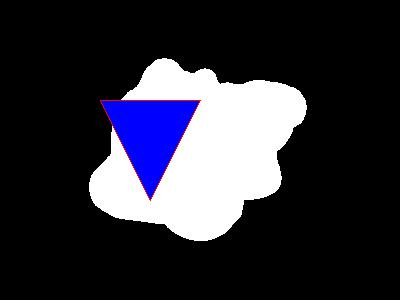
Example - Drawing a Polygon over Image
In this example we are drawing a polygon on the image by using the PIL.ImageDraw.Draw.polygon() method and specifying the parameters xy, fill and outline.
main.py
from PIL import Image, ImageDraw

#Open an image
image = Image.open("Images/black_white.jpg")

#Create a drawing object
draw = ImageDraw.Draw(image)

#Define the vertices of the polygon
polygon_vertices = [(100, 100), (200, 100), (150, 200)]

#Draw a filled polygon with a blue interior and a red outline
draw.polygon(polygon_vertices, fill="blue", outline="red")

#Save or display the modified image
image.save("Output_Images/output.jpg")
image.show()
Output
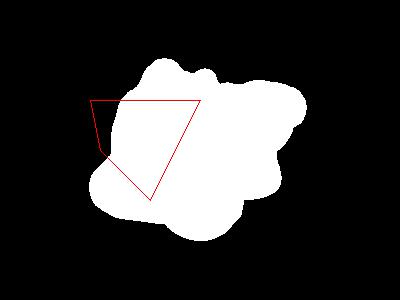
Example - Drawing Overlay Polygon on an Image
Here this is another example in which we are passing the fill parameter of PIL.ImageDraw.Draw.polygon() method as None to avoid filling the polygon.
main.py
from PIL import Image, ImageDraw

#Open an image
image = Image.open("Images/bw.png")

#Create a drawing object
draw = ImageDraw.Draw(image)

#Define the vertices of the polygon
polygon_vertices = [(100, 100), (200, 100), (150, 200),(100,150),(90,100)]

#Draw a filled polygon with a blue interior and a red outline
draw.polygon(polygon_vertices, fill= None, outline="red")

#Save or display the modified image
image.save("Output_Images/output.jpg")
image.show()
Output
ImageDraw Module Methods
In addition to the above methods, This module offers many other specific methods that can be used for specific conditions. Let's explore and understand the basic fuctionality of each method −
| Sr.No. | Methods with Description |
|---|---|
| 1 |
Draws an arc inside a specified bounding box. |
| 2 |
Draws a chord (a segment of a circle) inside a bounding box. |
| 3 |
Draws a filled pie slice inside a bounding box. |
| 4 |
Draws points (single pixels) at specified coordinates on an image. |
| 5 |
Draws a regular polygon with a given bounding circle. |
| 6 |
Draws a rounded rectangle. |
| 7 |
Draws multiline text at a specified position on an image. |