
- Basic Image Operations
- Python Pillow - Working with Images
- Python Pillow - Resizing an Image
- Python Pillow - Flip and Rotate Images
- Python Pillow - Cropping an Image
- Python Pillow - Adding Borders to Images
- Python Pillow - Identifying Image Files
- Python Pillow - Merging Images
- Python Pillow - Cutting and Pasting Images
- Python Pillow - Rolling an Image
- Python Pillow - Writing text on image
- Python Pillow - ImageDraw Module
- Python Pillow - Concatenating two Images
- Python Pillow - Creating Thumbnails
- Python Pillow - Creating a Watermark
- Python Pillow - Image Sequences
- Python Pillow Color Conversions
- Python Pillow - Colors on an Image
- Python Pillow - Creating Images With Colors
- Python Pillow - Converting Color String to RGB Color Values
- Python Pillow - Converting Color String to Grayscale Values
- Python Pillow - Change the Color by Changing the Pixel Values
- Image Manipulation
- Python Pillow - Reducing Noise
- Python Pillow - Changing Image Modes
- Python Pillow - Compositing Images
- Python Pillow - Working with Alpha Channels
- Python Pillow - Applying Perspective Transforms
- Image Filtering
- Python Pillow - Adding Filters to an Image
- Python Pillow - Convolution Filters
- Python Pillow - Blur an Image
- Python Pillow - Edge Detection
- Python Pillow - Embossing Images
- Python Pillow - Enhancing Edges
- Python Pillow - Unsharp Mask Filter
- Image Enhancement and Correction
- Python Pillow - Enhancing Contrast
- Python Pillow - Enhancing Sharpness
- Python Pillow - Enhancing Color
- Python Pillow - Correcting Color Balance
- Python Pillow - Removing Noise
- Advanced Topics
- Python Pillow - Creating Animated GIFs
- Python Pillow - Batch Processing Images
- Python Pillow - Converting Image File Formats
- Python Pillow - Adding Padding to an Image
- Python Pillow - Color Inversion
- Python Pillow - M L with Numpy
- Python Pillow with Tkinter BitmapImage and PhotoImage objects
- Image Module
- Python Pillow - Image Blending
- Python Pillow Useful Resources
- Python Pillow - Quick Guide
- Python Pillow - Function Reference
- Python Pillow - Useful Resources
- Python Pillow - Discussion
Python Pillow - ImageDraw.multiline_text() Function
The ImageDraw.multiline_text() method in the Pillow library is used to draw multiline text at a specified position on an image.
Syntax
Following is the syntax of the function −
ImageDraw.multiline_text(xy, text, fill=None, font=None, anchor=None, spacing=4, align='left', direction=None, features=None, language=None, stroke_width=0, stroke_fill=None, embedded_color=False, font_size=None)
Parameters
Here are the details of this function parameters −
xy − The anchor coordinates of the text. It specifies the position where the anchor aligns with the text.
text − The string to be drawn, containing the multiline text.
fill − The color to use for the text.
font − An ImageFont instance that represents the font to be used for the text.
anchor − The text anchor alignment. It determines the relative location of the anchor to the text. The default alignment is top left.
spacing − The number of pixels between lines.
align − The alignment of lines within the multiline text. It can be "left", "center", or "right".
direction − The direction of the text. It can be "rtl" (right to left), "ltr" (left to right), or "ttb" (top to bottom).
features − A list of OpenType font features to be used during text layout. It's used to enable or disable optional font features.
language − The language of the text. It should be a BCP 47 language code.
stroke_width − The width of the text stroke.
stroke_fill − The color to use for the text stroke. If not given, it defaults to the fill parameter.
embedded_color − Whether to use font embedded color glyphs (COLR, CBDT, SBIX).
font_size − If the font parameter is not provided, this specifies the size to use for the default font.
Examples
Example 1
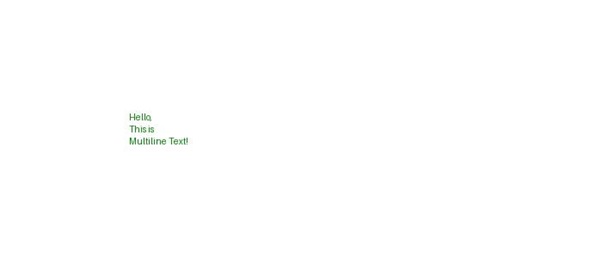
In this example, the multiline_text() method is used to draw multiline text with the default parameters on the image.
from PIL import Image, ImageDraw, ImageFont

# Create an image
image = Image.new("RGB", (700, 300), "white")

# Get a drawing context
draw = ImageDraw.Draw(image)

# Define the multiline text
text = "Hello,\nThis is\nMultiline Text!"

# Set the fill color for the text
fill_color = 'green'

# Draw multiline text on the image with default parameters
draw.multiline_text((150, 130), text, fill=fill_color)

# Display the image
image.show()
print('The multiline text is drawn successfully...')
Output
The multiline text is drawn successfully...
Output Image
Example 2
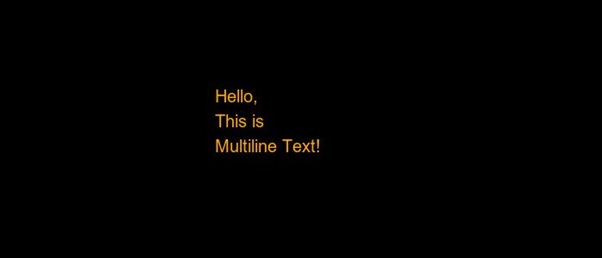
In this example, the multiline text is drawn on an image with different parameters.
from PIL import Image, ImageDraw, ImageFont

# Create a new image with a white background
image = Image.new("RGB", (700, 300), "black")
draw = ImageDraw.Draw(image)

# Define the multiline text
text = "Hello,\nThis is\nMultiline Text!"

# Set the font and size
font = ImageFont.truetype("arial.ttf", size=20)

# Set fill color for the text
fill_color = "orange"

# Draw multiline text on the image
draw.multiline_text((250, 100), text, fill=fill_color, font=font, spacing=10, align="left")

# Display the image
image.show()
print('The multiline text is drawn successfully...')
Output
The multiline text is drawn successfully...
Output Image
Example 3
The following example demonstrates how to draw the multiline text on an existing image with different parameters.
from PIL import Image, ImageDraw, ImageFont

# Open an Image
image = Image.open('Images/TP-W.jpg')

# Create the draw object
draw = ImageDraw.Draw(image)

# Define the multiline text
multiline_text = "Tutorialspoint,\nSimple Easy Learning At Your Fingertips"

# Set the font and size
font = ImageFont.load_default()

# Set fill color for the text
fill_color = "darkgreen"

# Draw multiline text on the image
draw.multiline_text((240, 310), multiline_text, fill=fill_color, font=font, spacing=10, align="left")

# Display the image
image.show()

print('Multiline text is drawn successfully...')
Output
Multiline text is drawn successfully...